Administrators can edit campaigns from the Campaigns page. The status of the campaign (In progress, Draft, Scheduled, Ended) will dictate what can be editited.
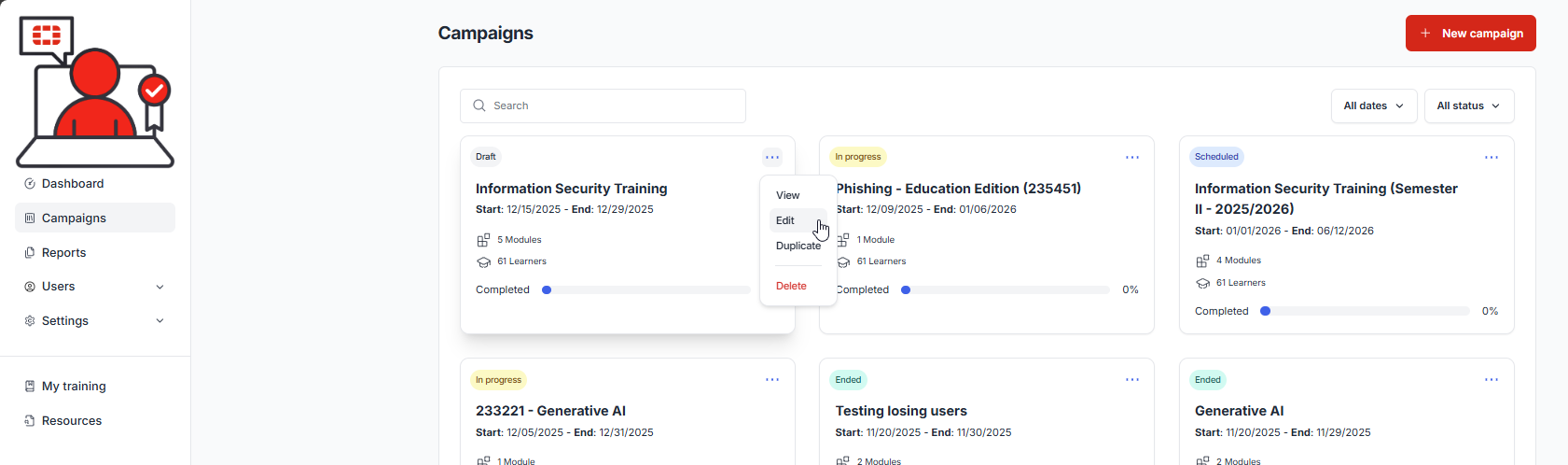
1.) Select Campaigns from the navigation menu, filter the campaigns to access the desirable campaign, then mouse over the campaign and select the three dots in the upper right hand corner and select Edit:
2.) Move through the wizard and make any necessary modifications to the campaign.
| Depending on where you are in the lifecycle of the campaign, you may not be able to modify certain values. For example, you cannot change the content after a campaign is launched. You cannot change dates if the date is already passed (i.e. start date, learner due date, end date). |

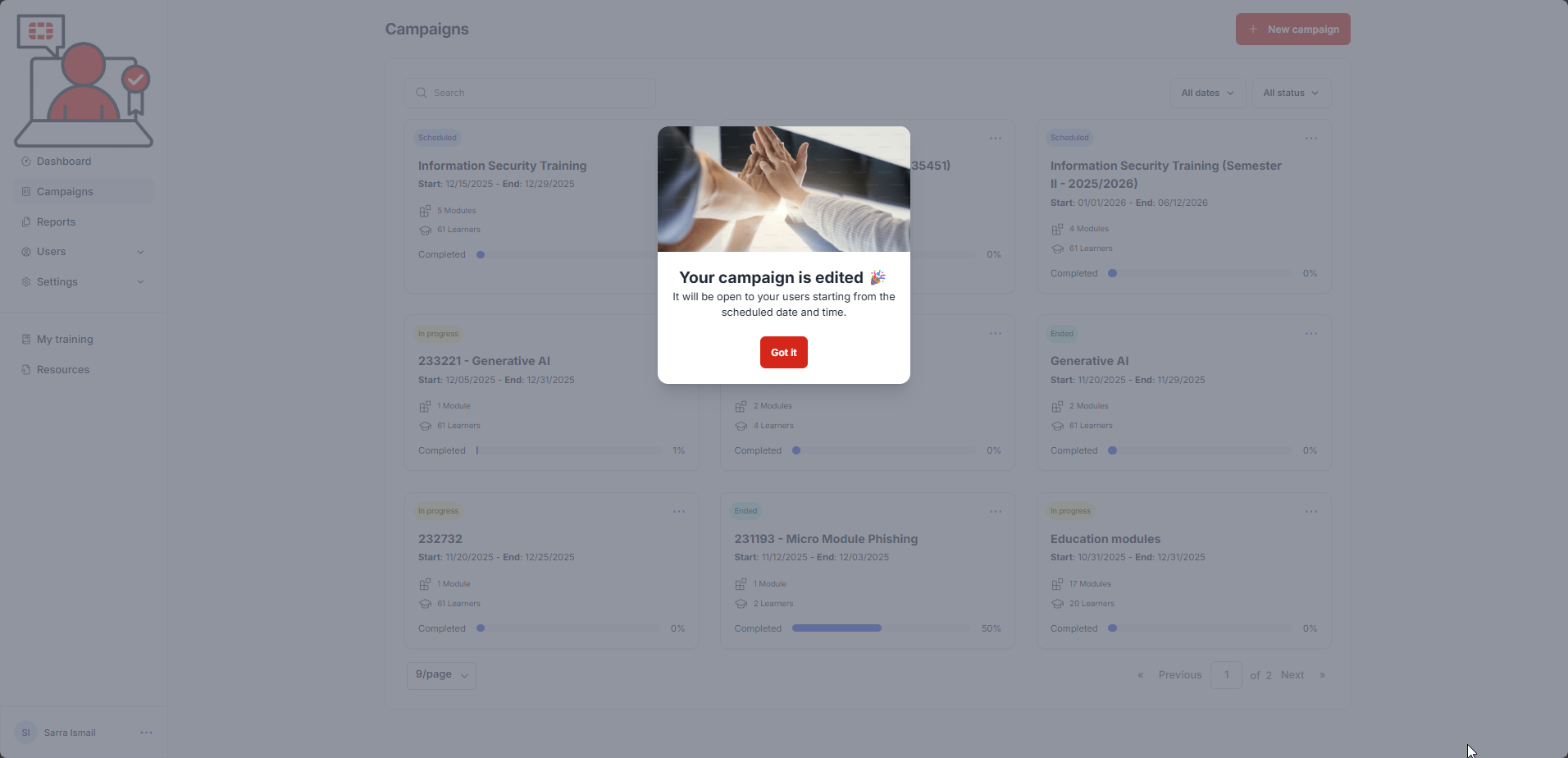
3.) When you get to the final page, select the Launch Campaign button. A confirmation message is displayed:
Was this article helpful?
That’s Great!
Thank you for your feedback
Sorry! We couldn't be helpful
Thank you for your feedback
Feedback sent
We appreciate your effort and will try to fix the article