| Standard level customers cannot complete the steps listed below. Only premium level customers can customize the email templates. |

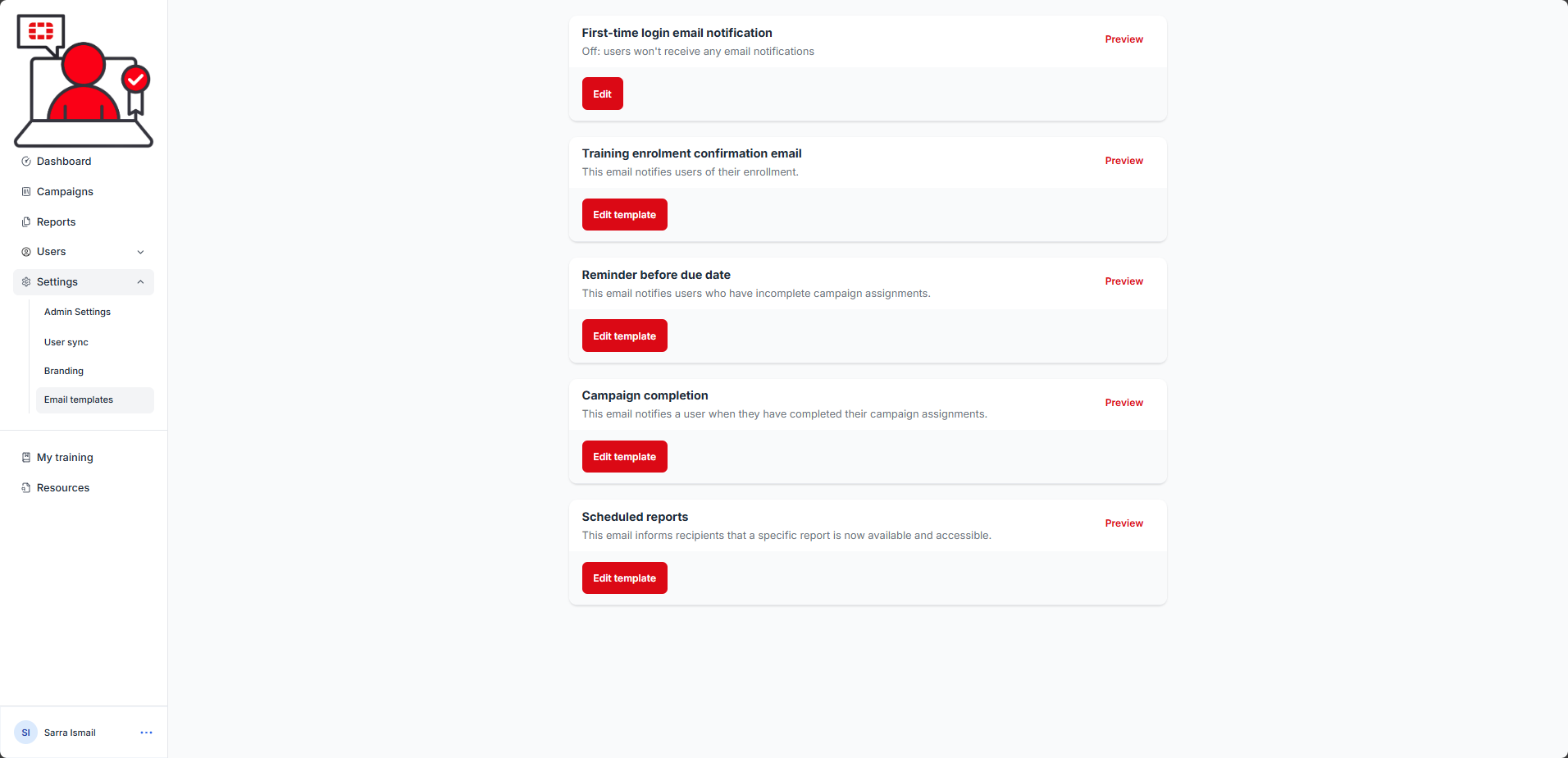
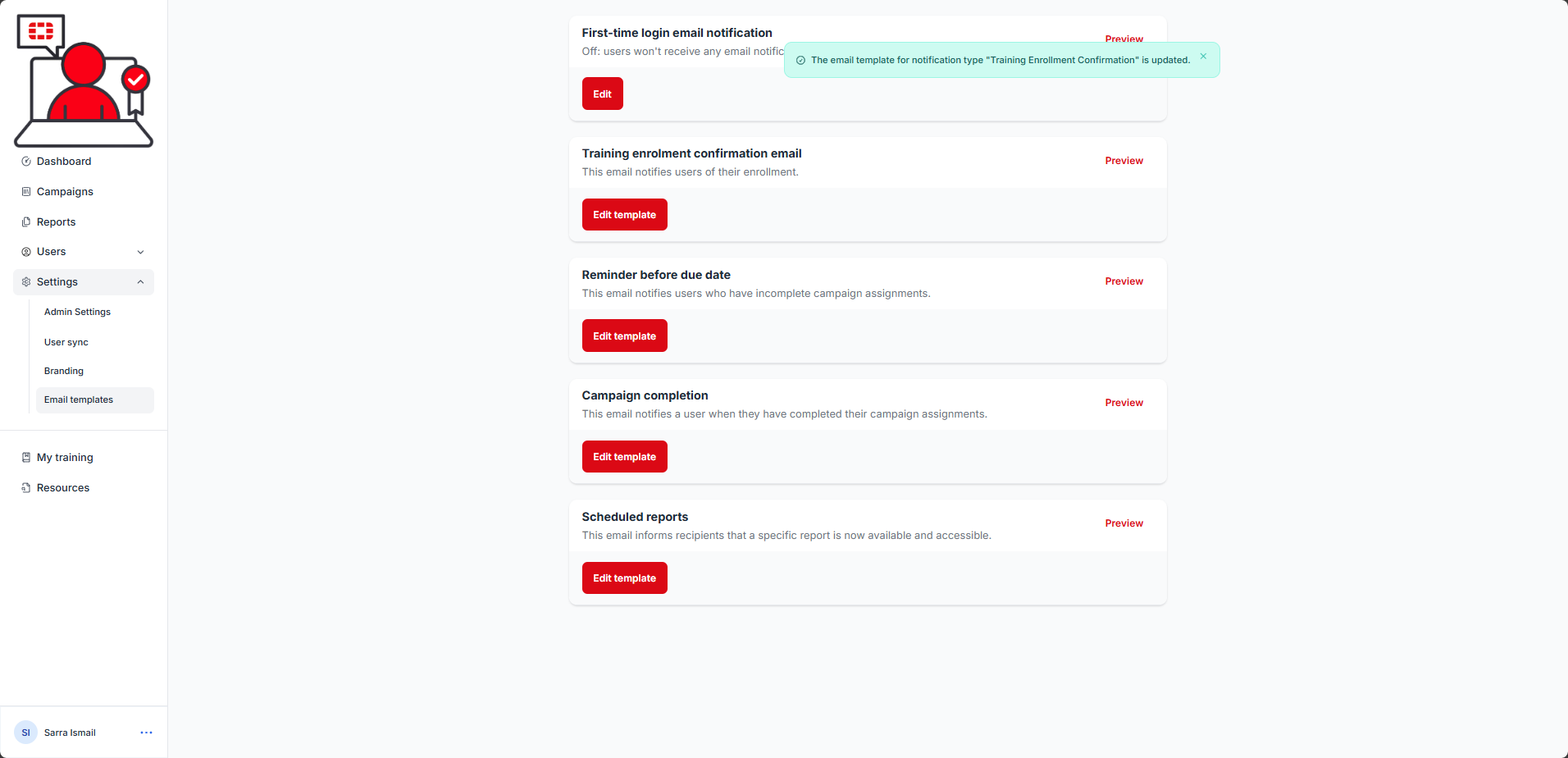
1.) Select Settings from the navigation menu, then select the Email templates sub-menu item. The Email templates page is displayed:
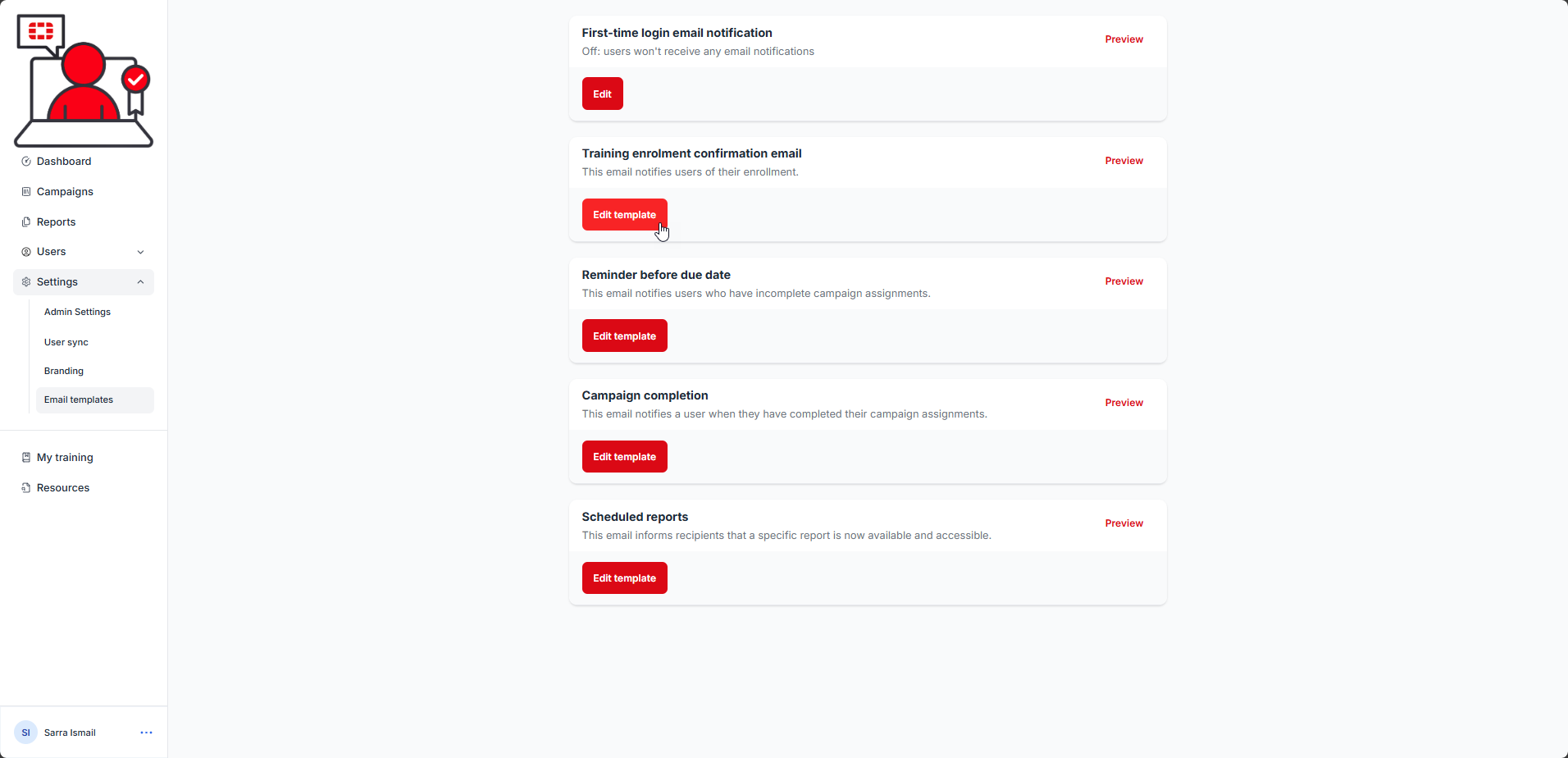
2.) In the Training enrolment confirmation email section, select the Edit template button:
The Training enrolment confirmation email settings are displayed:
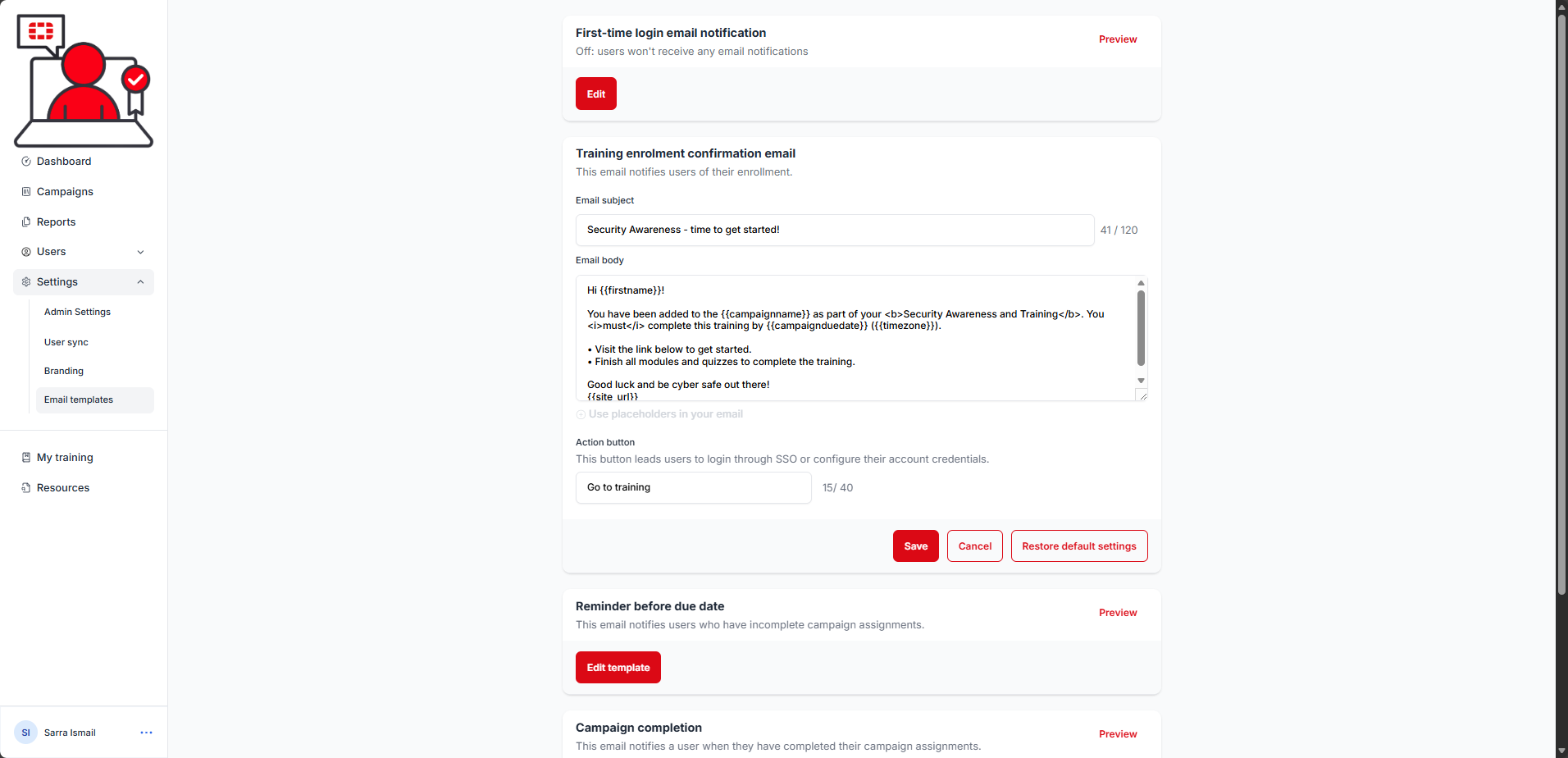
3.) Customize the Email subject field if you wish to include a different email subject.
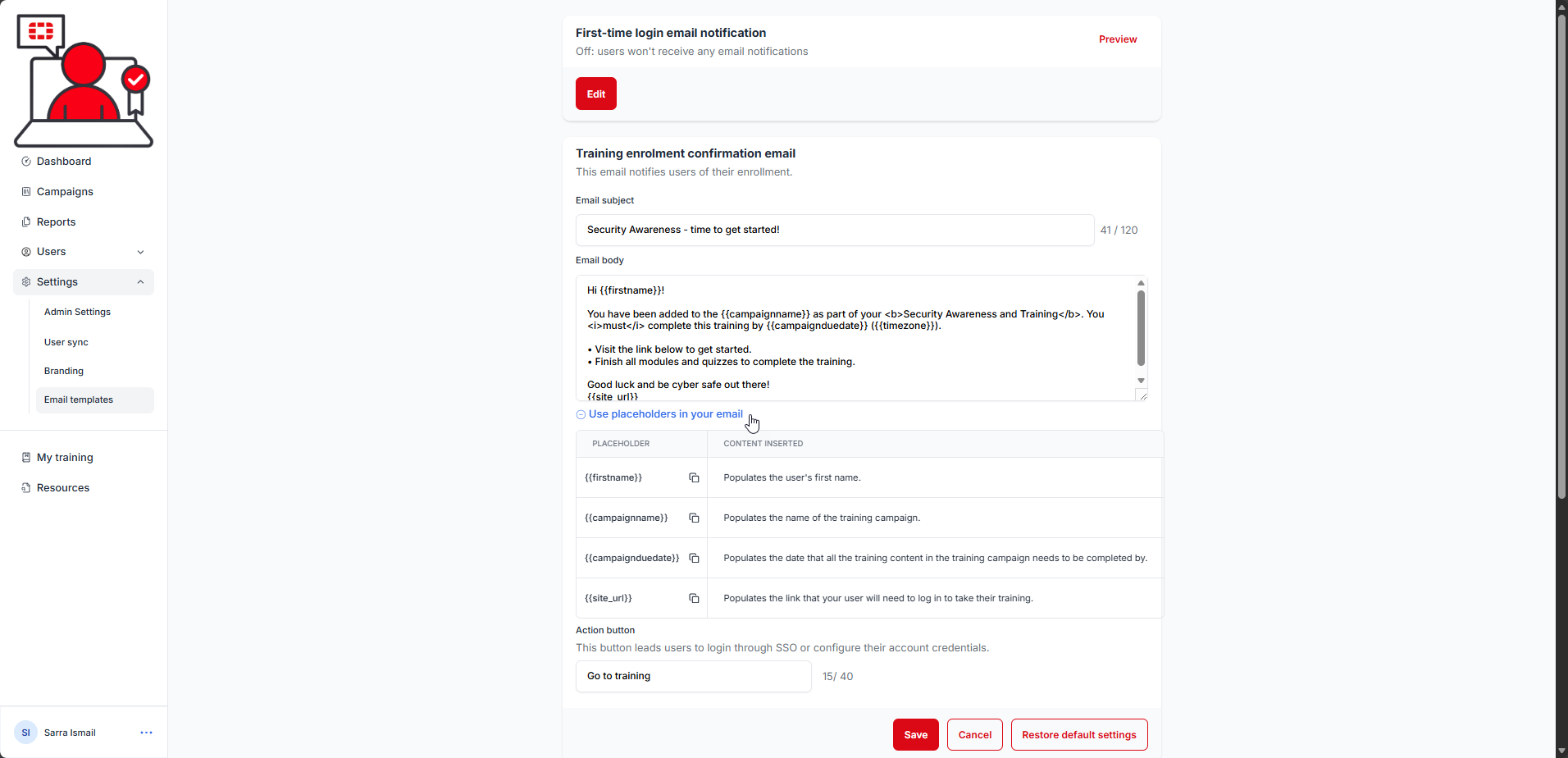
4.) Customize the content of the Email body as desired. You may wish to include a support number and/or email, additional information on why the training is being assigned etc. You an also use any of the provided placeholders in the email body. To view the placeholder values, click the + Use placholders in your email button below the body to expand the list of available placeholders:
5.) Customize the Action button text as desired. This is the text that will appear on the button within the email that redirects the learner to access their training.
6.) Click the Save button after you have completed your customizations. A confirmation message is displayed:
Was this article helpful?
That’s Great!
Thank you for your feedback
Sorry! We couldn't be helpful
Thank you for your feedback
Feedback sent
We appreciate your effort and will try to fix the article