Users assigned the Administrator role can also delete Import via LDAP configurations.
To delete an Import via LDAP configuration:
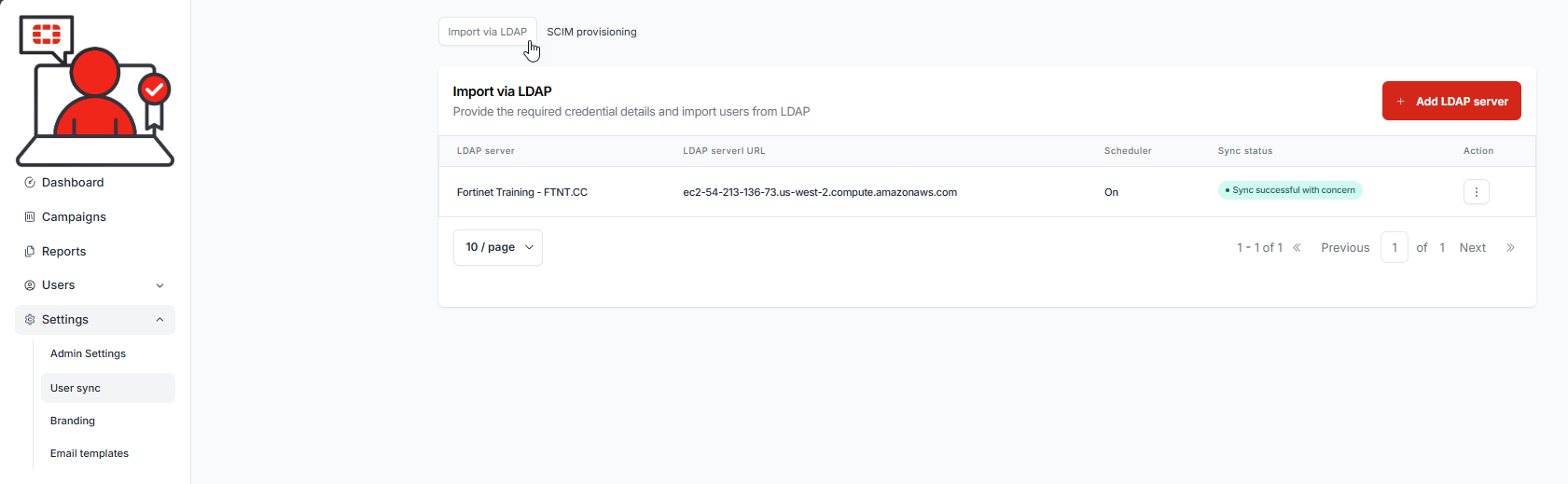
1.) Select Settings from the navigation menu, then select the User sync sub-menu item. The User sync page is displayed as is the default tab, Import via LDAP:
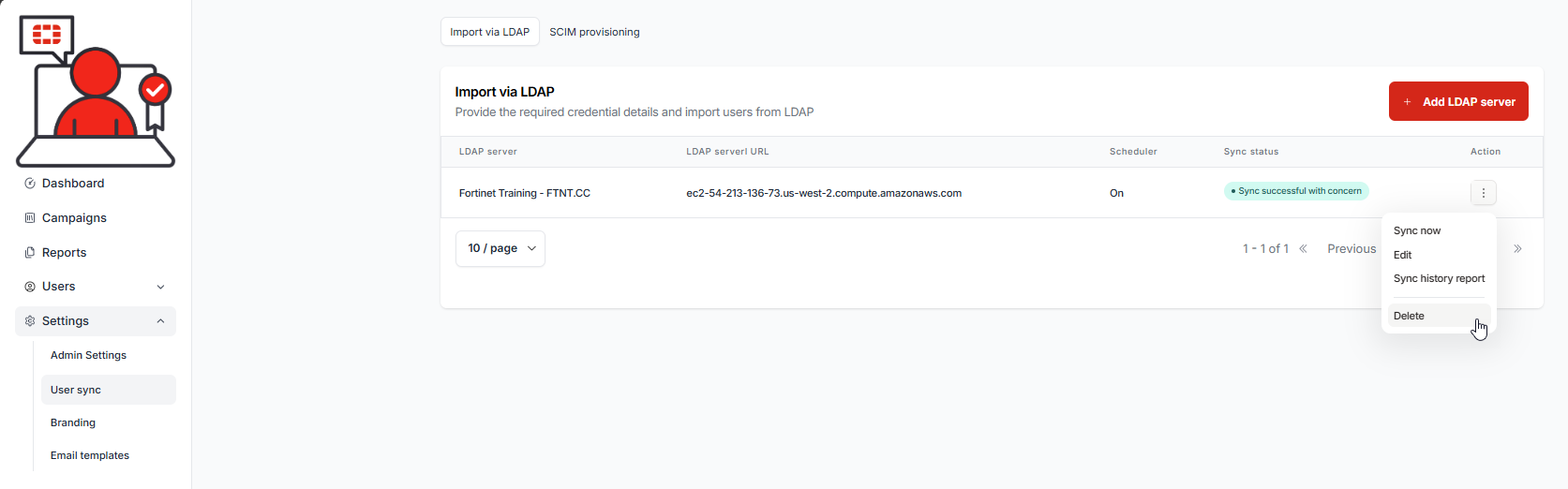
2.) Select the Action button to the right of the LDAP configuration you wish to delete, then select Delete from the Action menu:
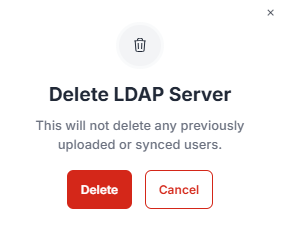
A confirmation message is displayed. If you wish to delete the entry, select the Delete button, else, select the Cancel button:
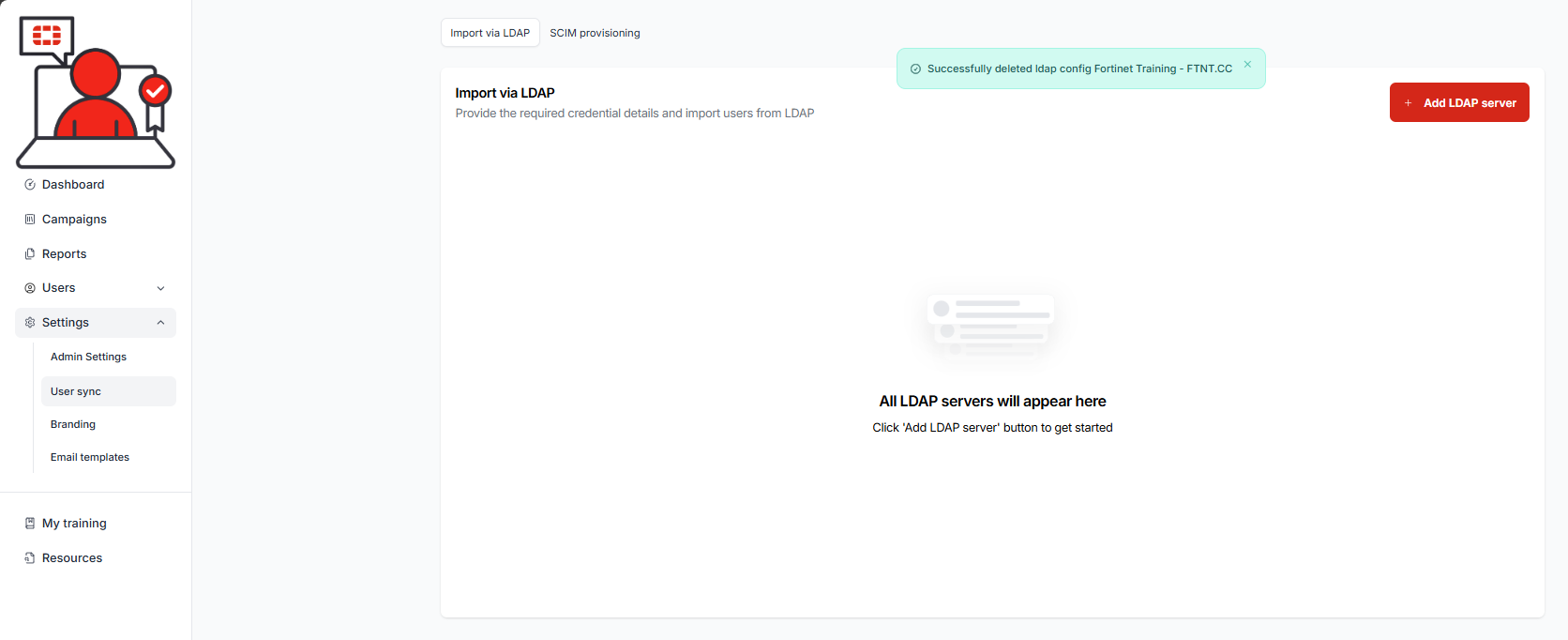
A confirmation message is displayeded, confirming the successful deletion of the configuration:
| Deleting the configuration does not delete the users from the service. Instead, the user and their learning metadata is retained in the database. The user is set to 'suspended' in our system and the user will be removed from customer view. Also, the available seat count will increase by the number of users that were synchronizing per the configuration. If the LDAP configuration is returned, any users matching the ldap filter setting will be un-suspended in the service and will appear to the administrator and consume a seat count. If customers delete an LDAP confiuration and then use a .csv import or a SCIM configuration to import users and the emails match one of the suspended users from the deleted LDAP configuration, the matching users will be un-suspended and consume a seat count. |

Was this article helpful?
That’s Great!
Thank you for your feedback
Sorry! We couldn't be helpful
Thank you for your feedback
Feedback sent
We appreciate your effort and will try to fix the article