| These steps must be performed after configuring the SAML2 SSO application for authentication of users. You will need to be logged in to the Google Workspace Admin console as the administrator. You will also need to be logged in to the FortiSATS Admin console as the tenant administrator. To configure SAML2 SSO for Google Workspace, refer to this article: (V3.x) How do I Configure SAML2 Single Sign-on (Authentication) to use Google Workspace SSO? |

Before configuring this automation, refer to this article: https://support.google.com/a/answer/7681608?hl=en
Specifically:
About automated user provisioning
Google supports automated user provisioning for many popular cloud applications. With automated user provisioning, you can automatically save changes to user identities in the Google Admin console for all supported apps. Users are synced every few hours.
Automated user provisioning operates on active, suspended, or deleted users only. It doesn't include archived users.
Note: Business Starter and Frontline Starter customers can configure up to 3 apps for automated user provisioning. Business Standard, Business Plus, and Enterprise editions have no provisioning limit.
Configuring a SCIM compliant app in Google Workspace
1.) Log in to the Google Workspace Admin Console
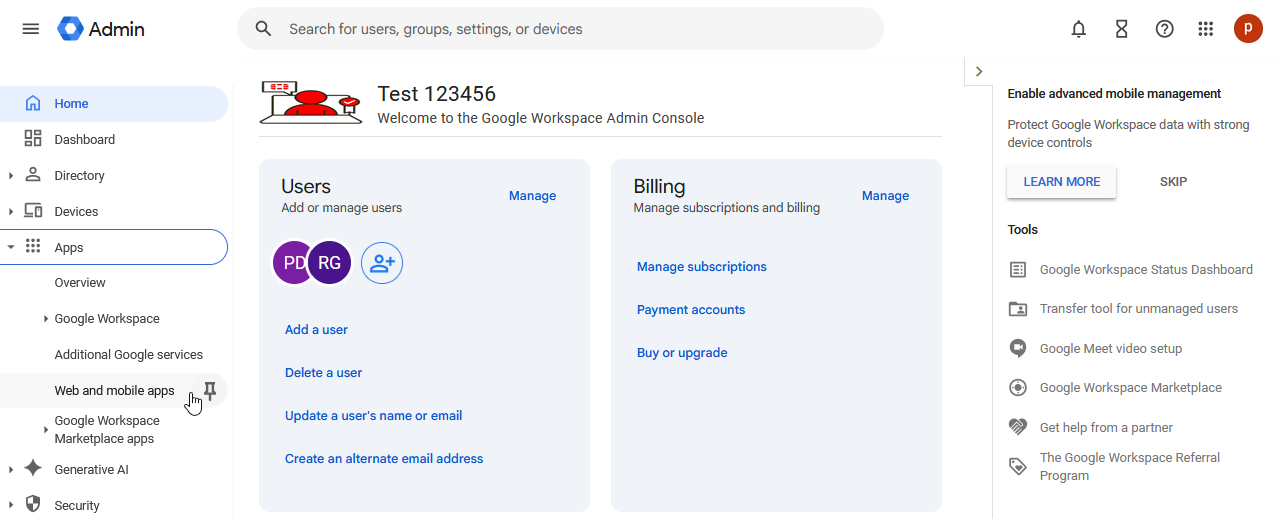
2.) From the navigation menu, select the Apps item, then select the Web and mobile apps submenu item:
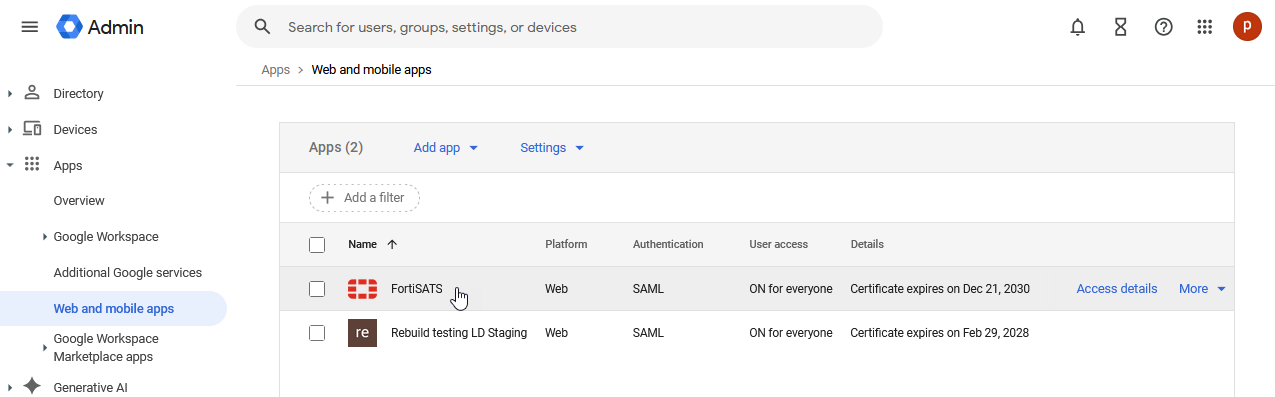
3.) Find the app that you created and configured for SSO (SAML2) authentication and select the app:
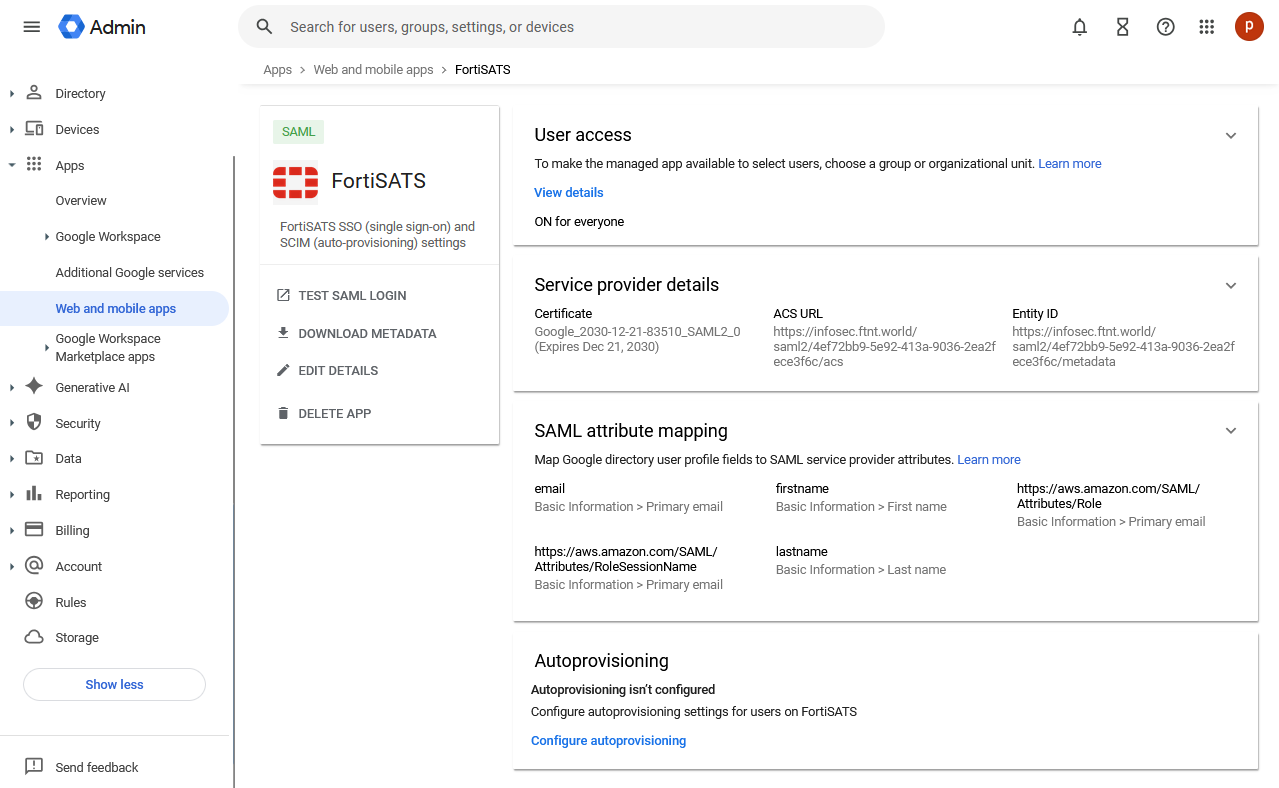
The main app page is displayed:
10) In the Auto-provisioning section, click on the Configure auto-provisioning link:
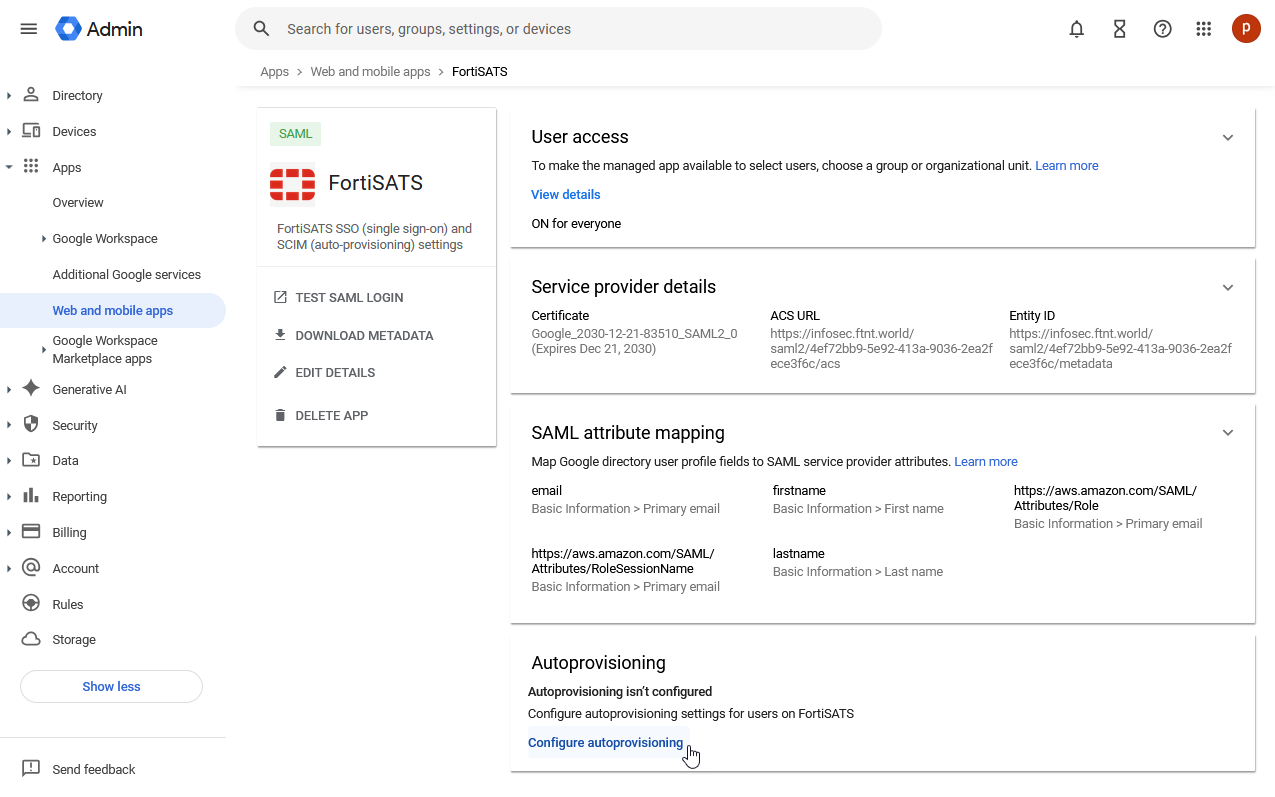
The Set up auto-provisioning for Amazon Web Services wizard is displayed:
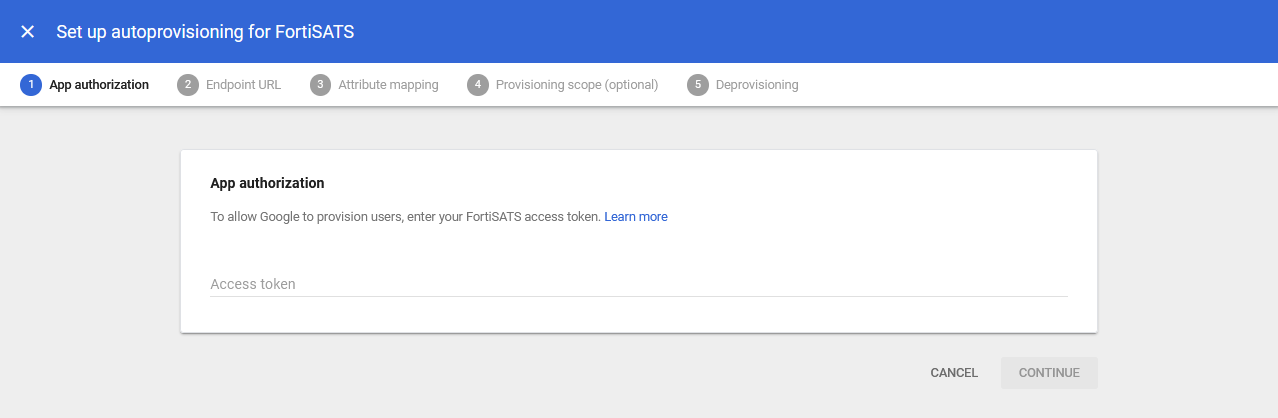
To obtain the access token for App authorization, you must log in to the Security Awareness and Training Service as the tenant administrator. (This is the account that logs in to initialize the service and manage licenses from https://support.fortinet.com).
11) Log in to FortiSATS as the tenant administrator.
12) Select My profile from the user menu in the lower left corner of the service interface:
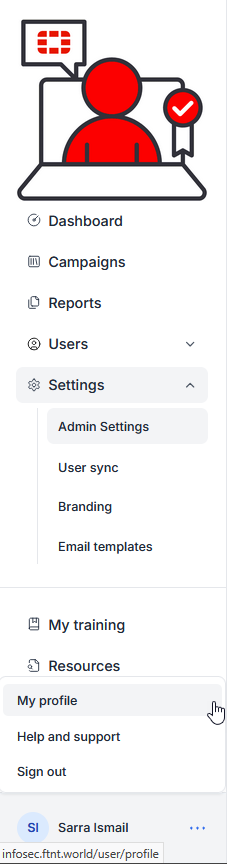
The My profile page is displayed:
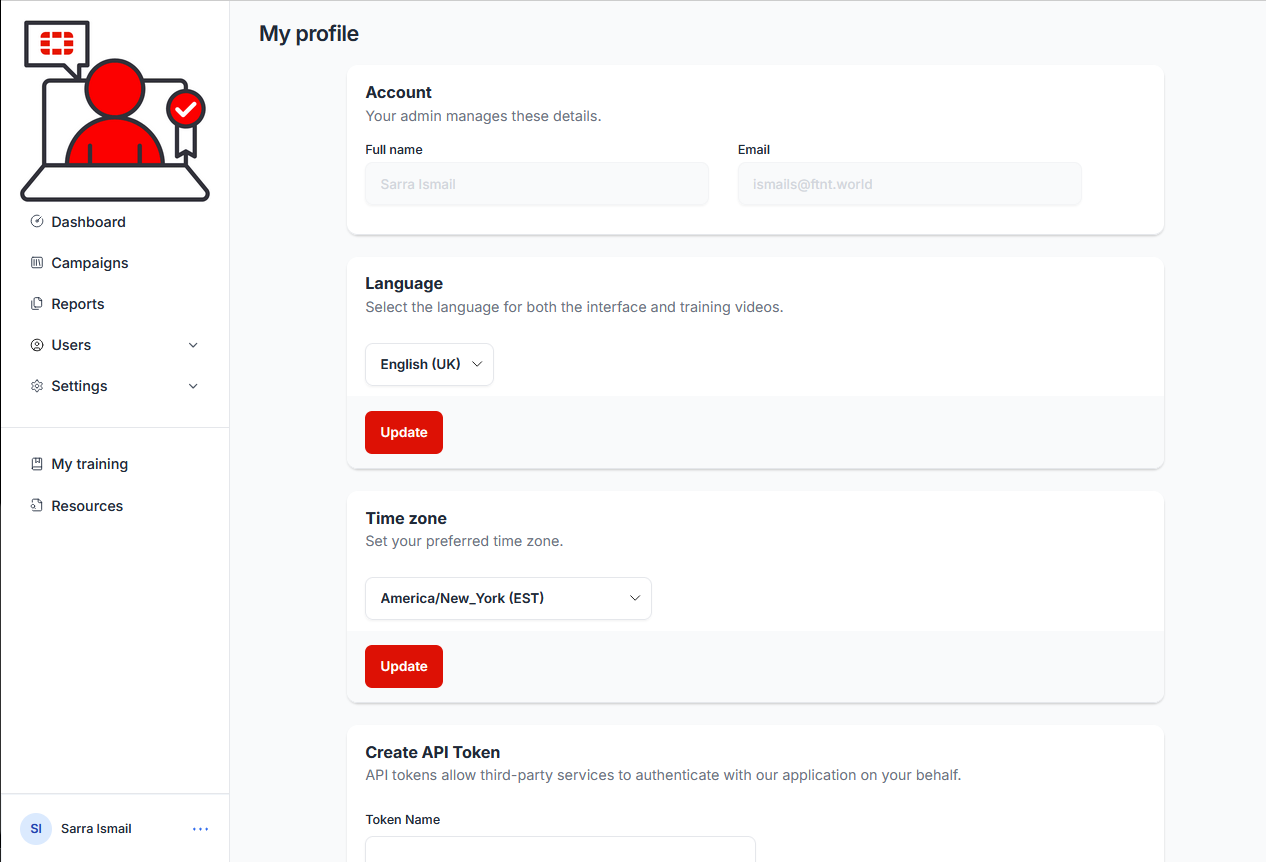
13) In the Create API Token section, give the token a meaningful name (e.g. Google Workspace auto-provisioning (SCIM)), ensure that the SCIM permission checkbox is checked, and select the Generate button:
The API Token dialogue is presented.
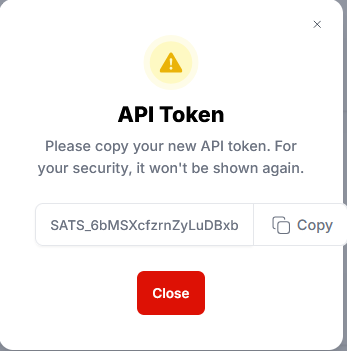
14) Click the Copy button to copy the token:
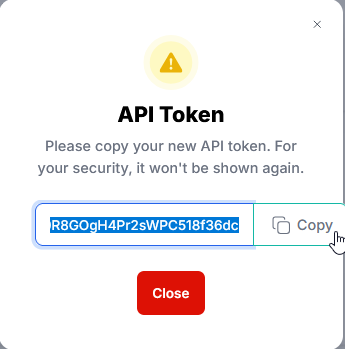
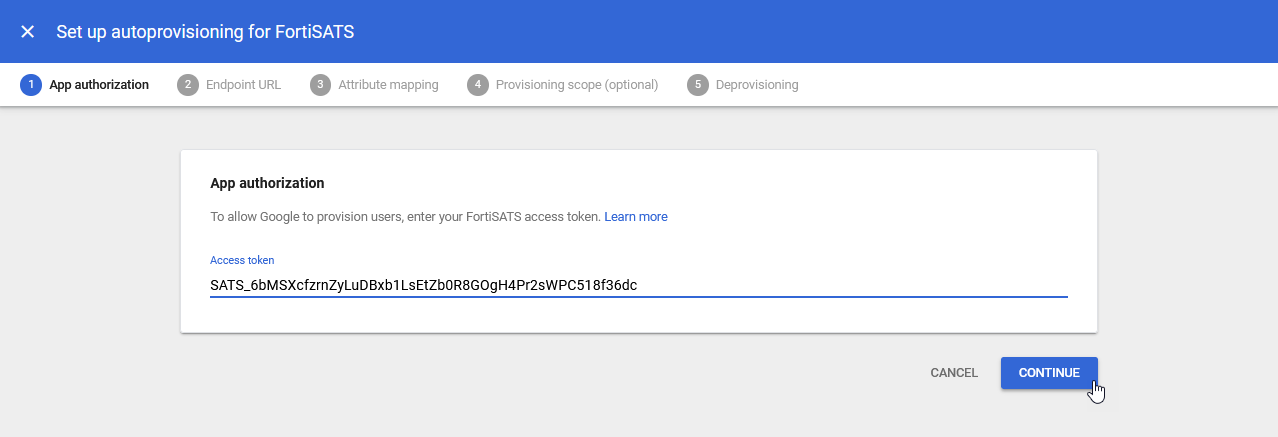
15) Return to the Google Workspace admin console and paste the token into the App authorization token field in Google Workspace and select CONTINUE:
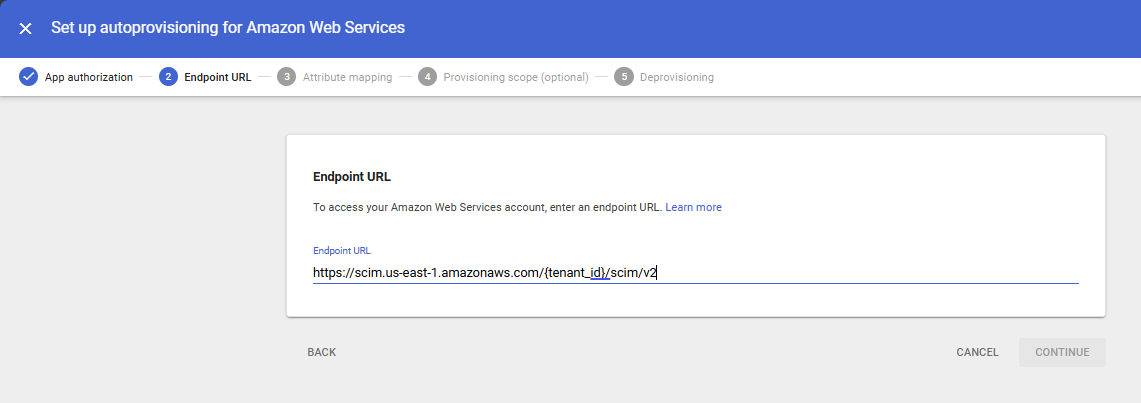
The Endpoint URL page is displayed:
16) Return to the FortiSATS admin console and select Settings and then select the User sync submenu item:
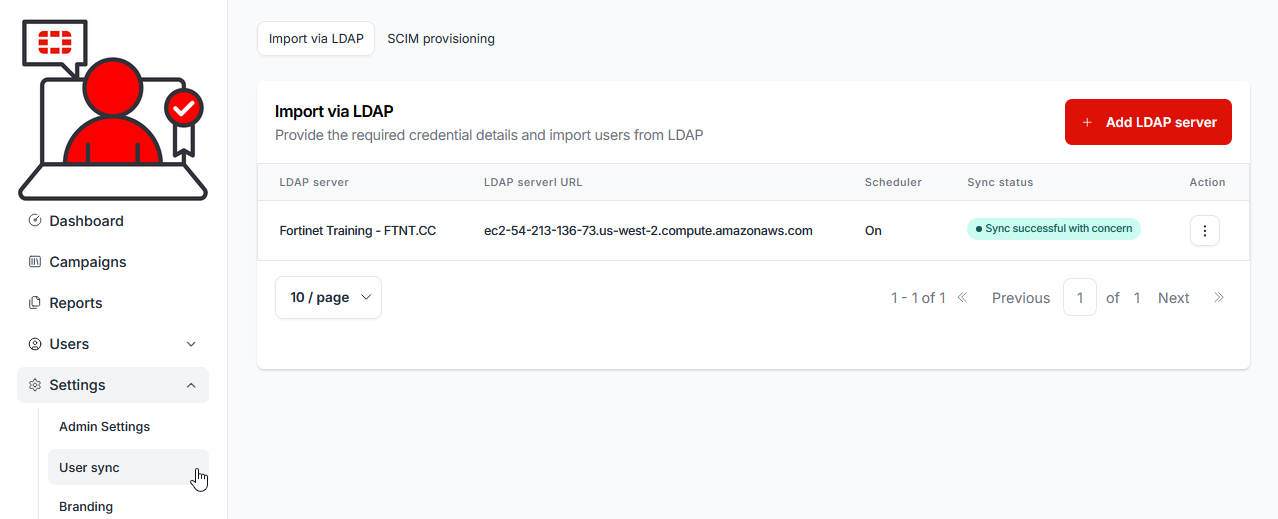
17) Select the SCIM provisioning tab:
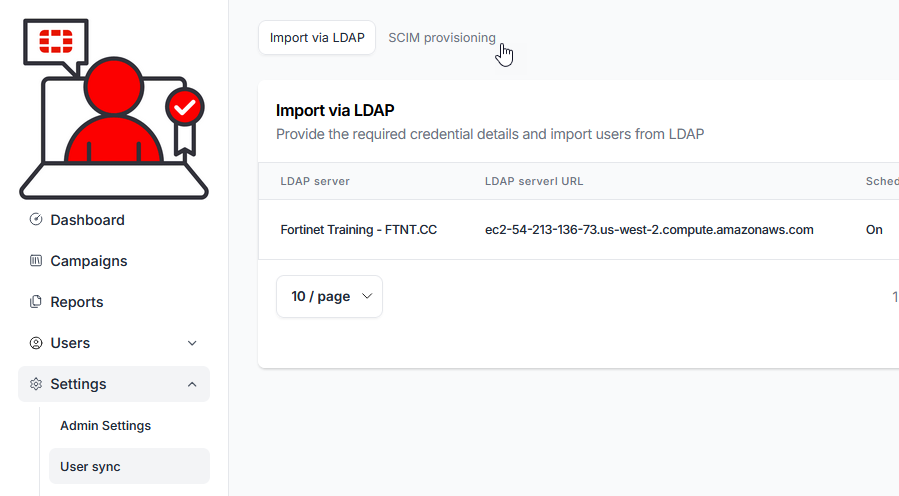
The SCIM provisioning page is displayed:
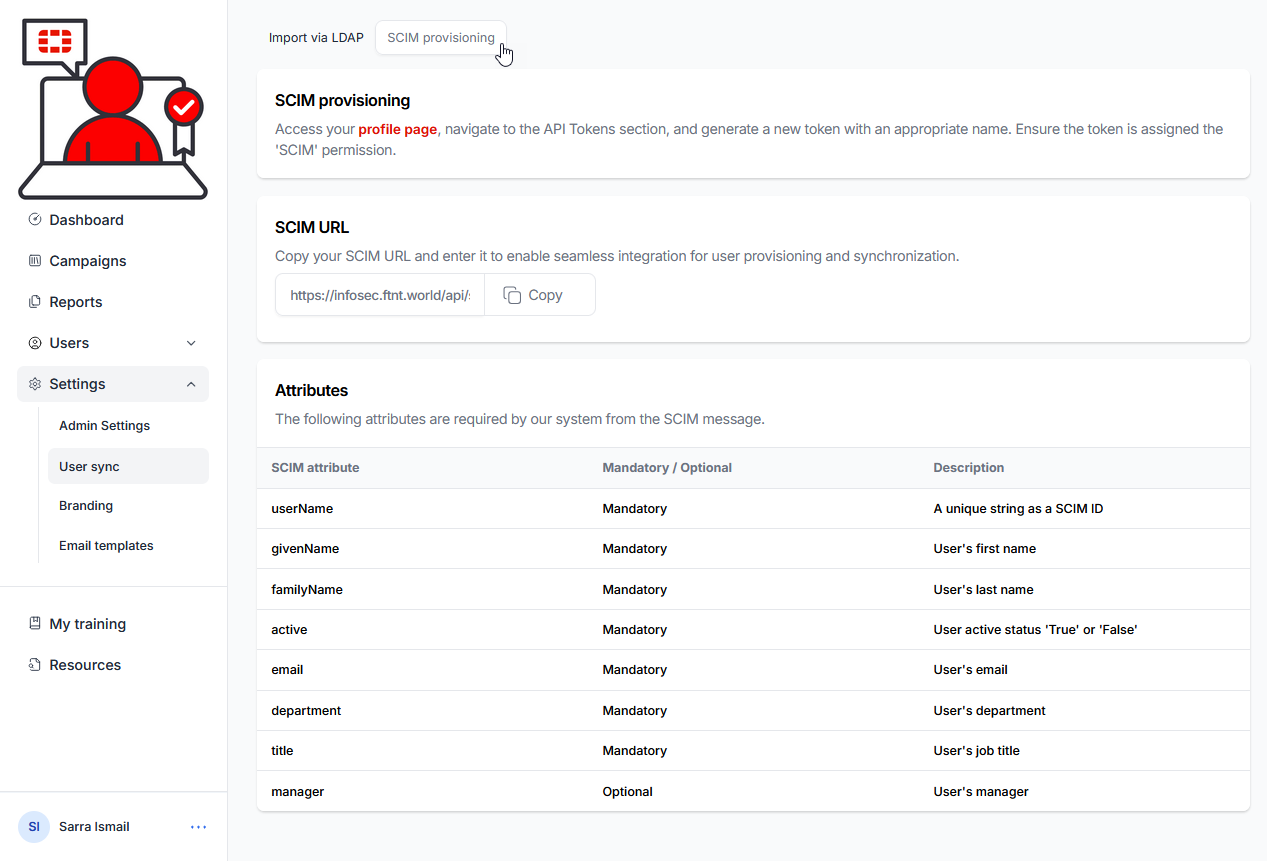
18) Click the copy button to copy the SCIM URL:
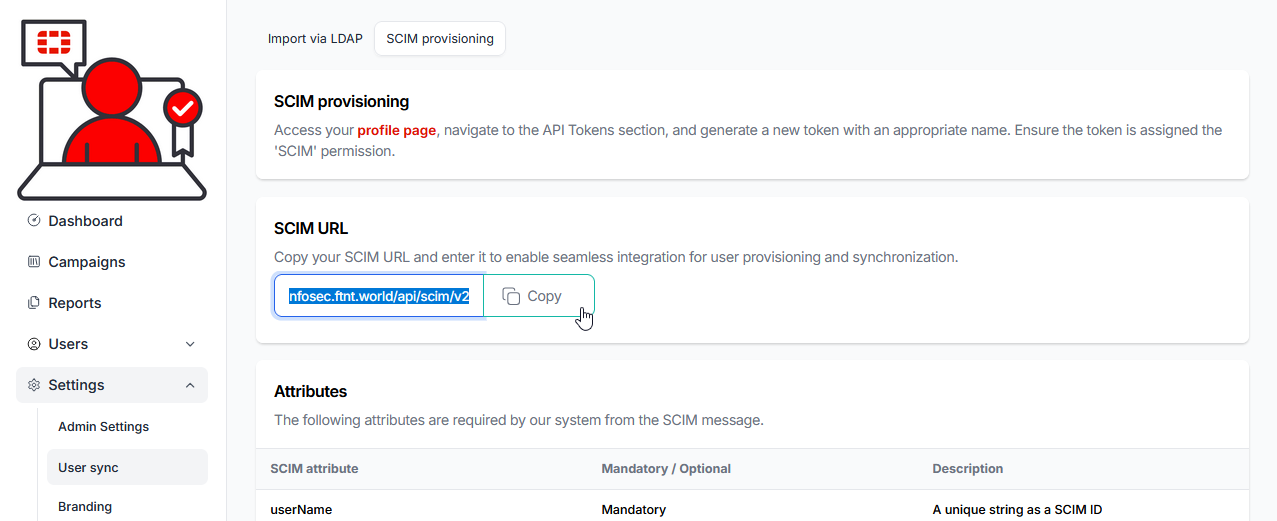
19) Return to the Endpoint URL page in Google Workspace and paste the url into the Endpoint URL field and select CONTINUE:
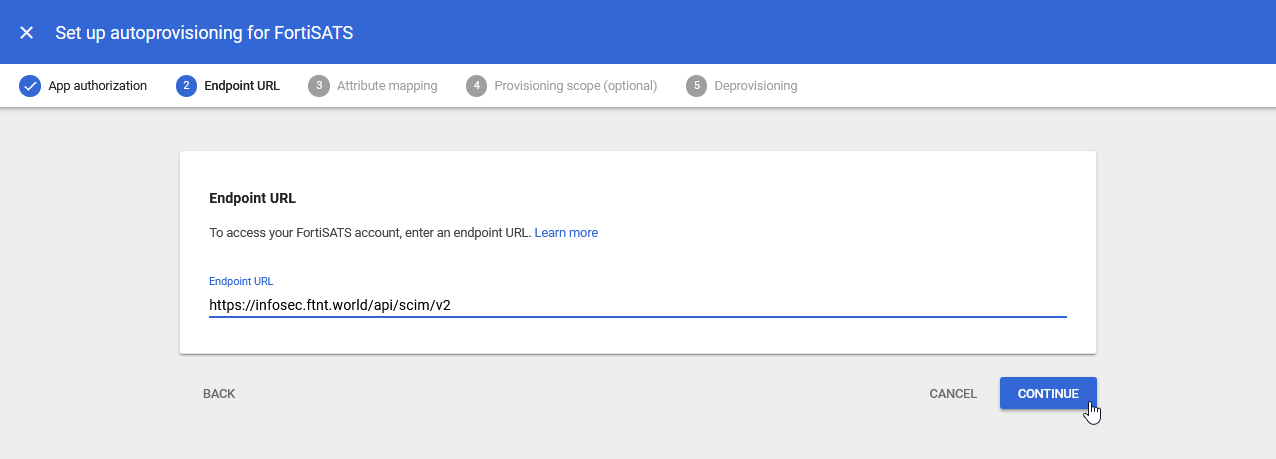
The Attribute mapping page is displayed.
20) The following settings should already be mapped, except the the Manager ID:
| Google Directory Attributes | App Attributes (SCIM standard) |
Basic Information > First name | name.givenName |
| Basic Information > Last name | name.familyName |
| Contact Information > Email > Value | emails.value |
| Employee Details > Department | urn:ietf:params:scim:schemas:extension:enterprise:2.0:User.department |
| Employee Details > Title | title |
| Employee Details > Manager ID (optional) | urn:ietf:params:scim:schemas:extension:enterprise:2.0:User.manager.value |
Map the manager ID:
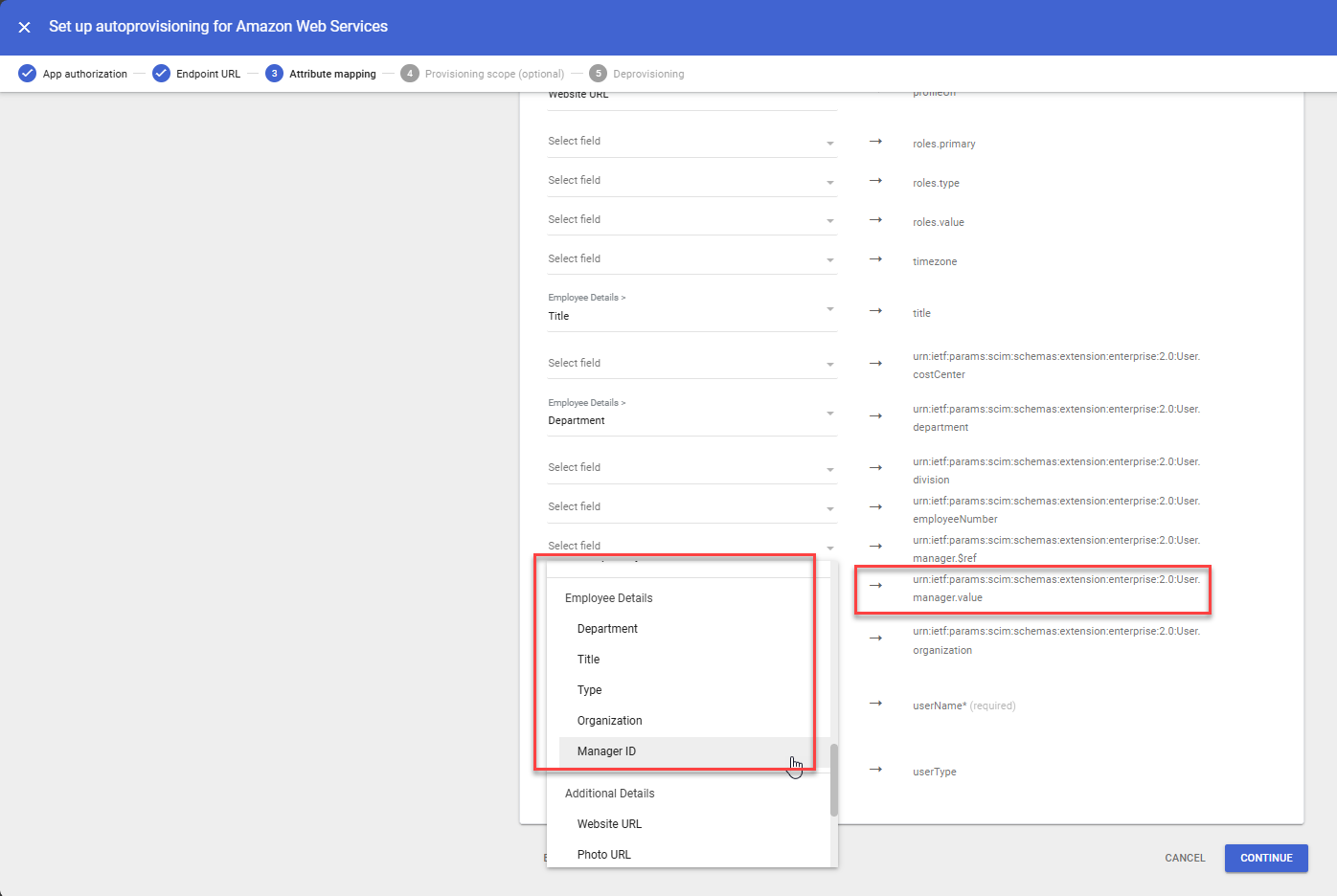
The mappings should align with the attributes listed in the table above. While additional, unnecessary attributes will also be sent, they will only consume bandwidth and can be disregarded.
21) Click the CONTINUE button at the bottom of the screen
The Provisioning scope (optional) page is displayed:
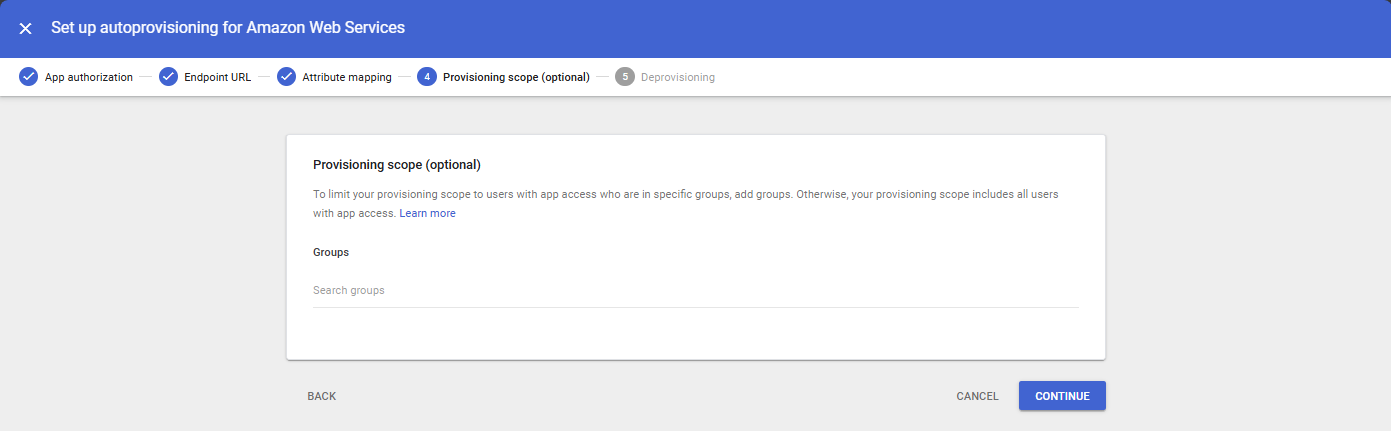
22) Click the CONTINUE button at the bottom of the screen
The Deprovisioning screen is displayed:
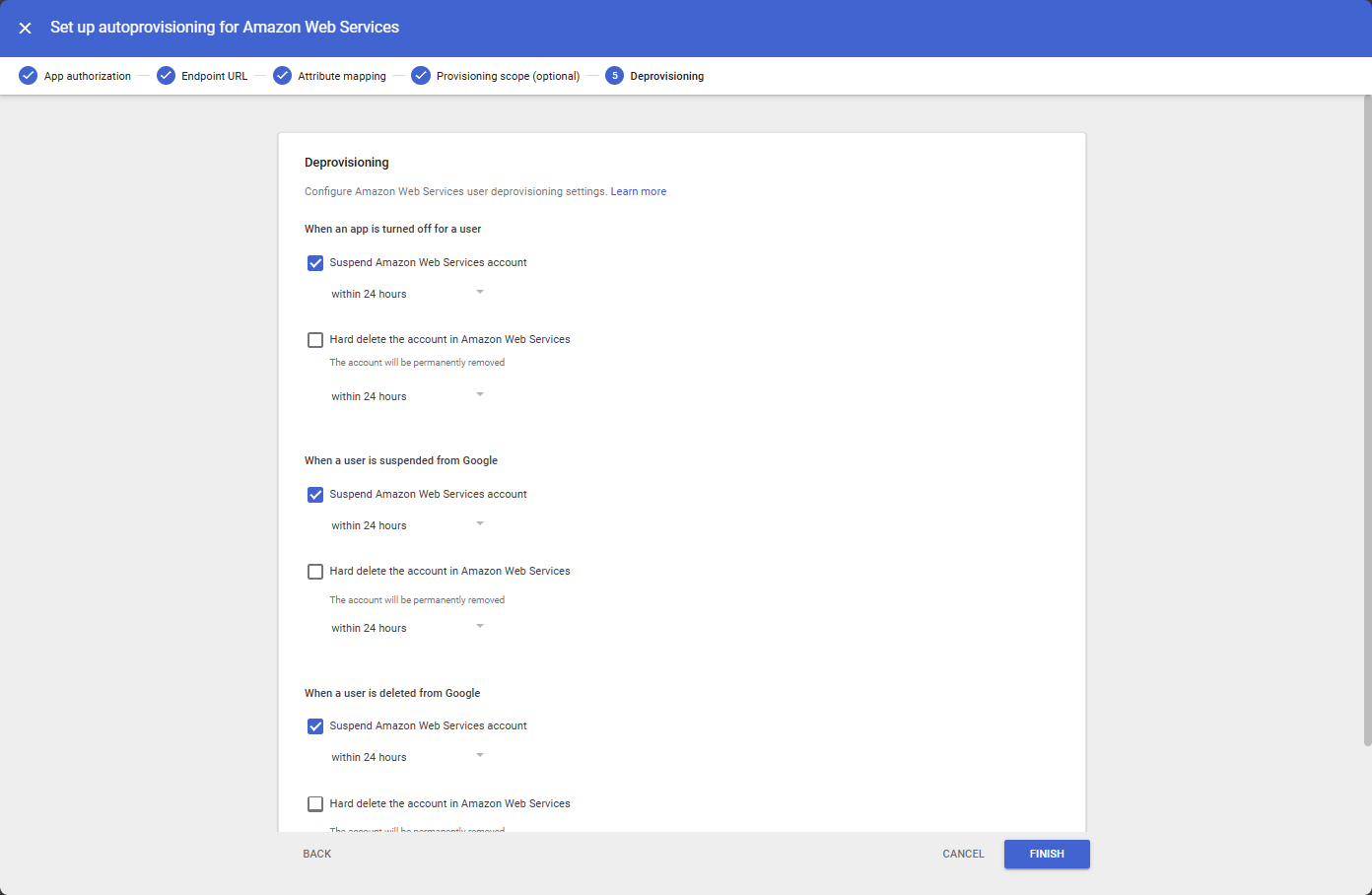
23) Make any desired changes to the Deprovisioning settings, then click the FINISH button at the botton of the screen.
You are returned to the main app page.
24) Turn on the Autoprovisioning option button:
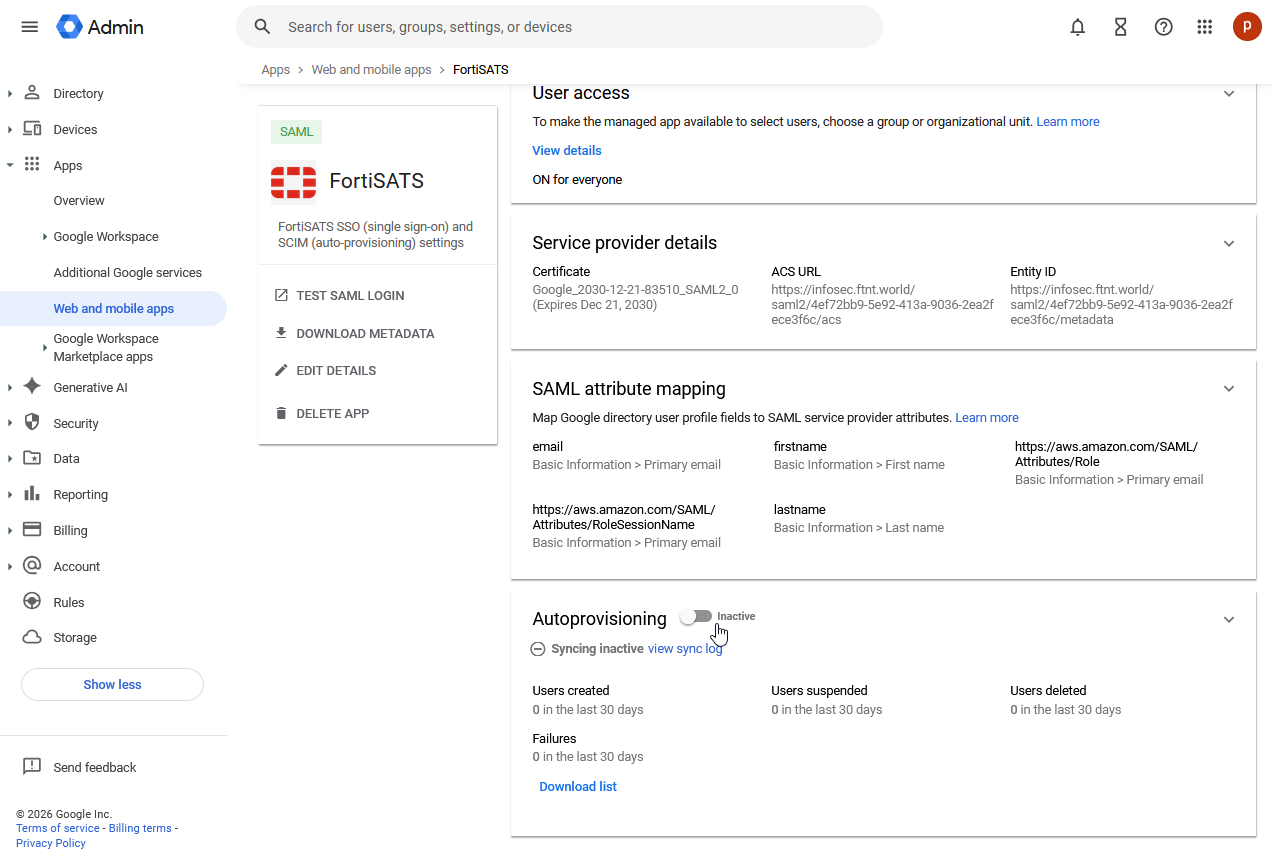
| The SCIM push in Google Workspace appears to be event-based but includes an unclear delay. Google Workspace does not expose its sync schedule. You may need to wait to see the users begin to sync to the Security Awareness and Training Service. |

How to check Google Workspace app SCIM provisioning logs
1.) Return to the main FortiSATS page for the app you created for SSO / User-provsioning.
2.) In the Autoprovisioning section near the bottom of the app page, select the Download list link to access the logs:
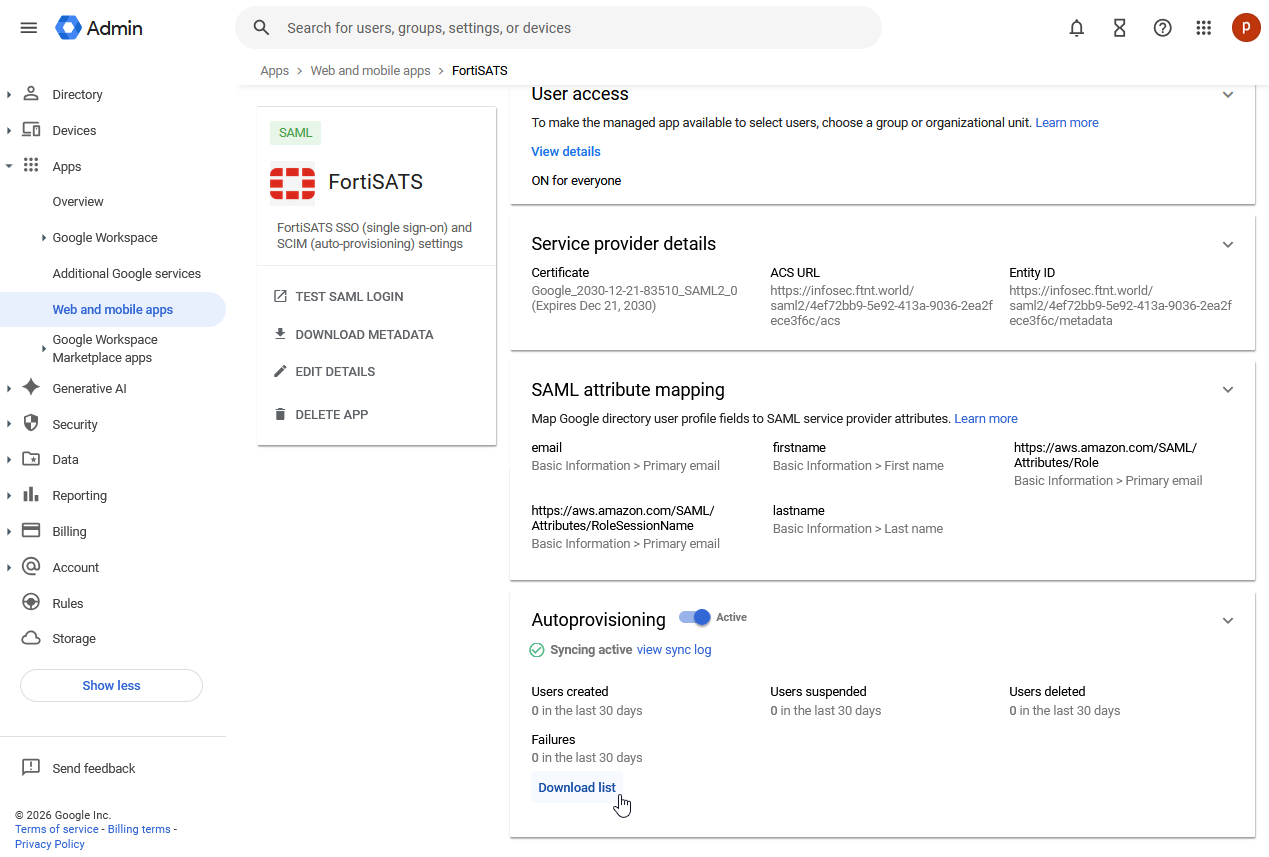
The Autoprovisioning Error Log.csv is downloaded. You can check the logs for errors and correct the necessary issues in the Google Workspace LDAP Directory.
After correcting issues, the users should synchronize on the next synchronization push from Google Workspace LDAP.
Was this article helpful?
That’s Great!
Thank you for your feedback
Sorry! We couldn't be helpful
Thank you for your feedback
Feedback sent
We appreciate your effort and will try to fix the article